
This covers the app: uploading a course, checking what will be recorded, and getting a tracked course back out. Building a course so its answers can be recorded is a separate job — see Building Storyline Courses That Report Learner Answers.
In this article:
- The Loop
- Upload Your Course
- Check the Warnings
- Review the Tracking Points
- Optional Settings
- Generate
- Publish — the Step the App Doesn't Do
- Check Data Is Arriving
- Tracker Statuses
- Changing a Course After It's Live
The Loop
Five steps, and the app only does two of them:
- Upload your
.storyfile. - Generate. You get a modified
.storyfile back, with tracking built in. - Re-import that file into Storyline — it replaces the one you uploaded.
- Publish it from Storyline as you normally would.
- Put the published course in front of learners. Data starts arriving.
Steps 3 to 5 happen in Storyline and your LMS, not in the app. It has no way of knowing whether you have done them, so nothing in the app will tell you they are outstanding. This is the step people miss.
Upload Your Course
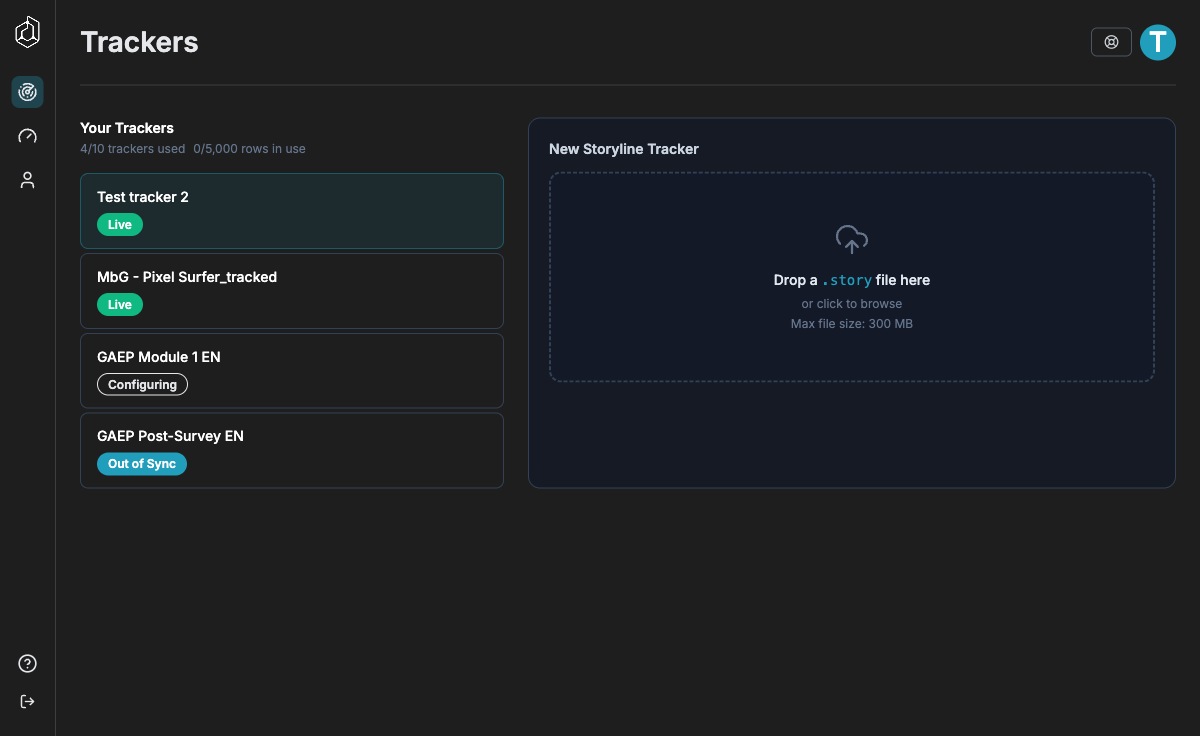
Trackers → New Storyline Tracker. Drop a .story file on the panel or
click to browse. Maximum file size: 300 MB.
Parsing a small course takes under two seconds. A large one — 100+ slides, 100 MB+ — takes noticeably longer. The view opens by itself when it's done.
You do not need to prepare the file. Upload the .story you already have.
Check the Warnings
The first thing you see is a panel headed "n authoring warnings", open by default. On a large course there may be dozens, and they will fill the screen — the tracking points are below them, so scroll past to see the rest of the page.
Warnings do not block anything. They tell you what will and won't reach your data, while you can still fix it. A course with thirty warnings will generate perfectly well; it just won't record everything you might have assumed.
The four you are most likely to see:
| Warning | What it means | Fix in Storyline? |
|---|---|---|
| This course doesn't clearly identify the correct answer | Answers are recorded; whether they were right is a guess | Yes, if correctness matters to you |
| Some slides share a name | Two slides share a name; reports will qualify them with a file name | Optional — affects labels, not data |
| Responses to this built-in question aren't being reported | A question is missing something reporting needs | Yes |
| Some of your variables aren't being reported | Variables exist that nothing sends | Only if you wanted that data |
That last one is usually fine. Courses carry working variables — counters, flags, positions — that were never meant to be data. The warning says so: "If you meant these to stay internal to the course, you can ignore this."
Each warning names the slides it affects. Fix what matters, re-upload, and the warning list shrinks.
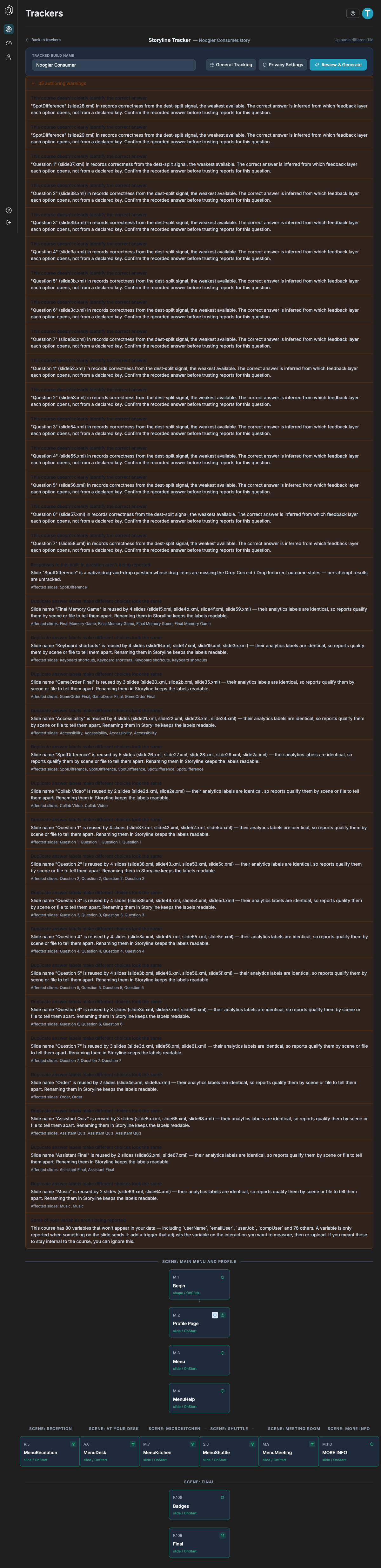
A messy course. The warnings fill the screen — the tracking points are below them.
Review the Tracking Points
Below the warnings is a list of tracking points, grouped by scene. Each row is one moment in the course that will be recorded — a slide being reached, a button being clicked, an answer being submitted.
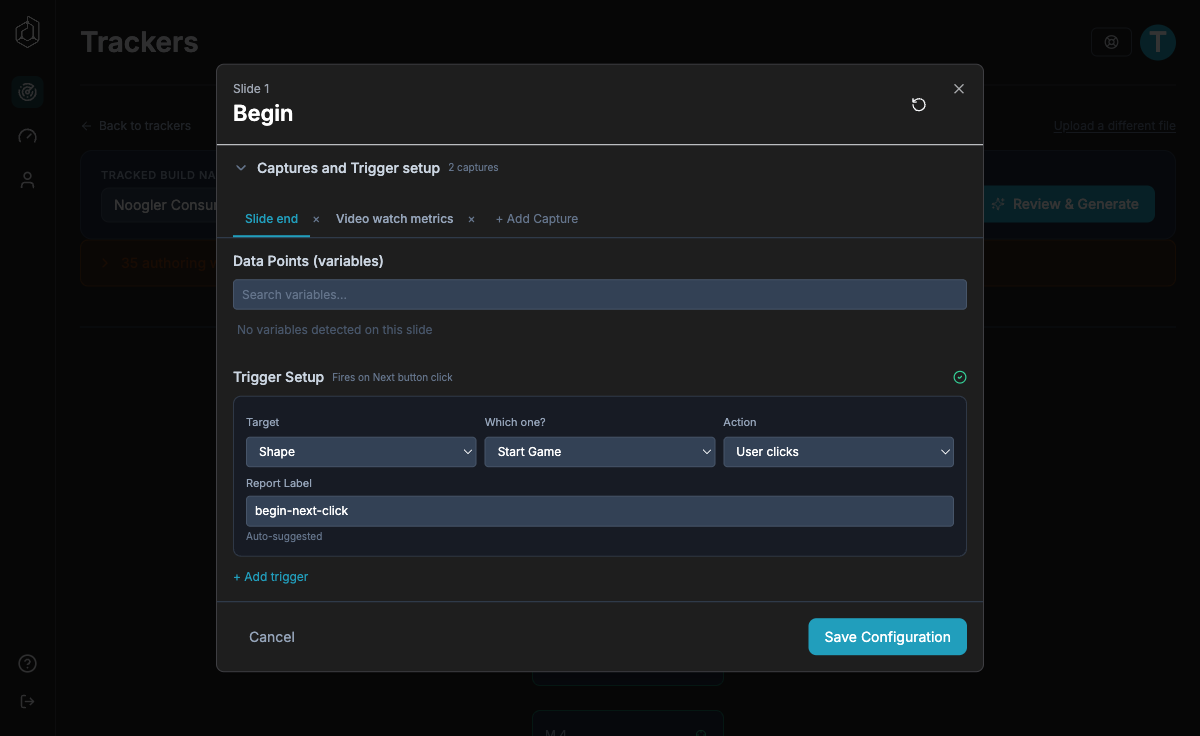
A row reads like M.2 · Profile Page · slide / OnStart: its position, the slide
it belongs to, and what triggers it.
These are filled in for you. The parser reads your course and proposes them. For a first run you can leave every one alone.
Click a row to open it if you want to change what it records or rename it. The name you give it here — its Report Label — is what appears in your data and in reports, so it is worth setting on anything a client will read. Rows the parser proposed itself are marked Auto-suggested.
A 110-slide course typically produces around a dozen rows. That is expected — one row can cover many slides.
Optional Settings
Two controls sit at the top of the configuration view. They look like tabs; both open dialogs, and both are optional.
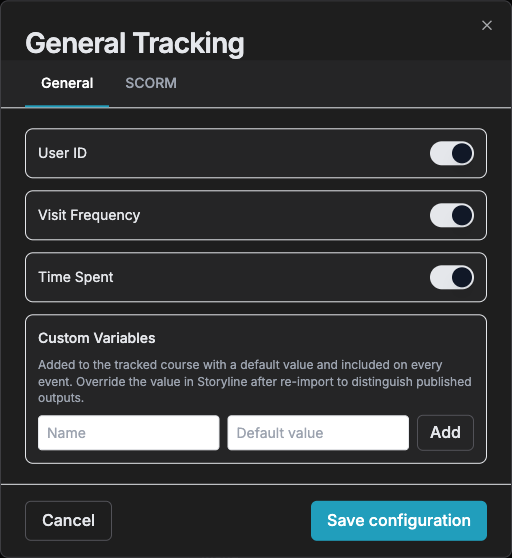
General Tracking — what gets attached to every event.
- User ID, Visit Frequency, Time Spent are on by default. Leave them on unless you have a reason not to.
- SCORM → LMS ID and LMS Name are off by default. Turn them on if you need to tie data back to LMS records.
- Custom Variables add a fixed value to every event — useful for telling two published versions of the same course apart. Set the value in Storyline after re-importing.
Privacy Settings — three tabs.
- Tracked Sites — which domains may send data. Leaving it open accepts events from anywhere the course is hosted.
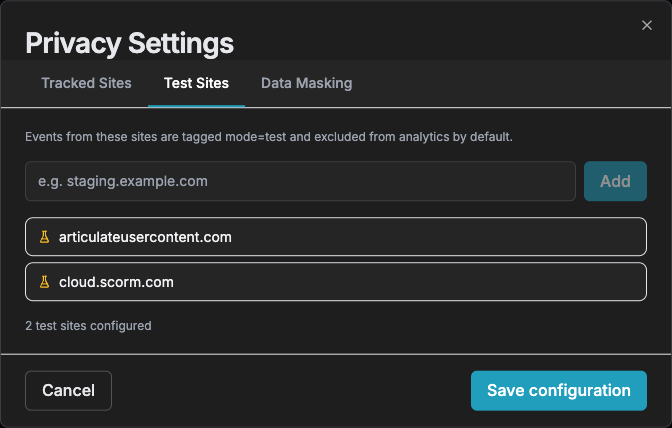
- Test Sites — two are pre-configured:
articulateusercontent.comandcloud.scorm.com. Events from these are tagged as test and excluded from analytics by default, so your own preview runs don't pollute the data. This is why a course you have previewed yourself may show no events. - Data Masking — tick any variable whose value should be hashed before storage. A masked value is unreadable everywhere afterwards, including in reports. Mask genuine personal data; don't mask something you will want to read.
Generate
Review & Generate is the finish button. It opens a summary: total slides, how many are captured, the data points you will get, and which settings are on.
Read the Captured Data Points list. It is the clearest statement anywhere of what you are about to start collecting.
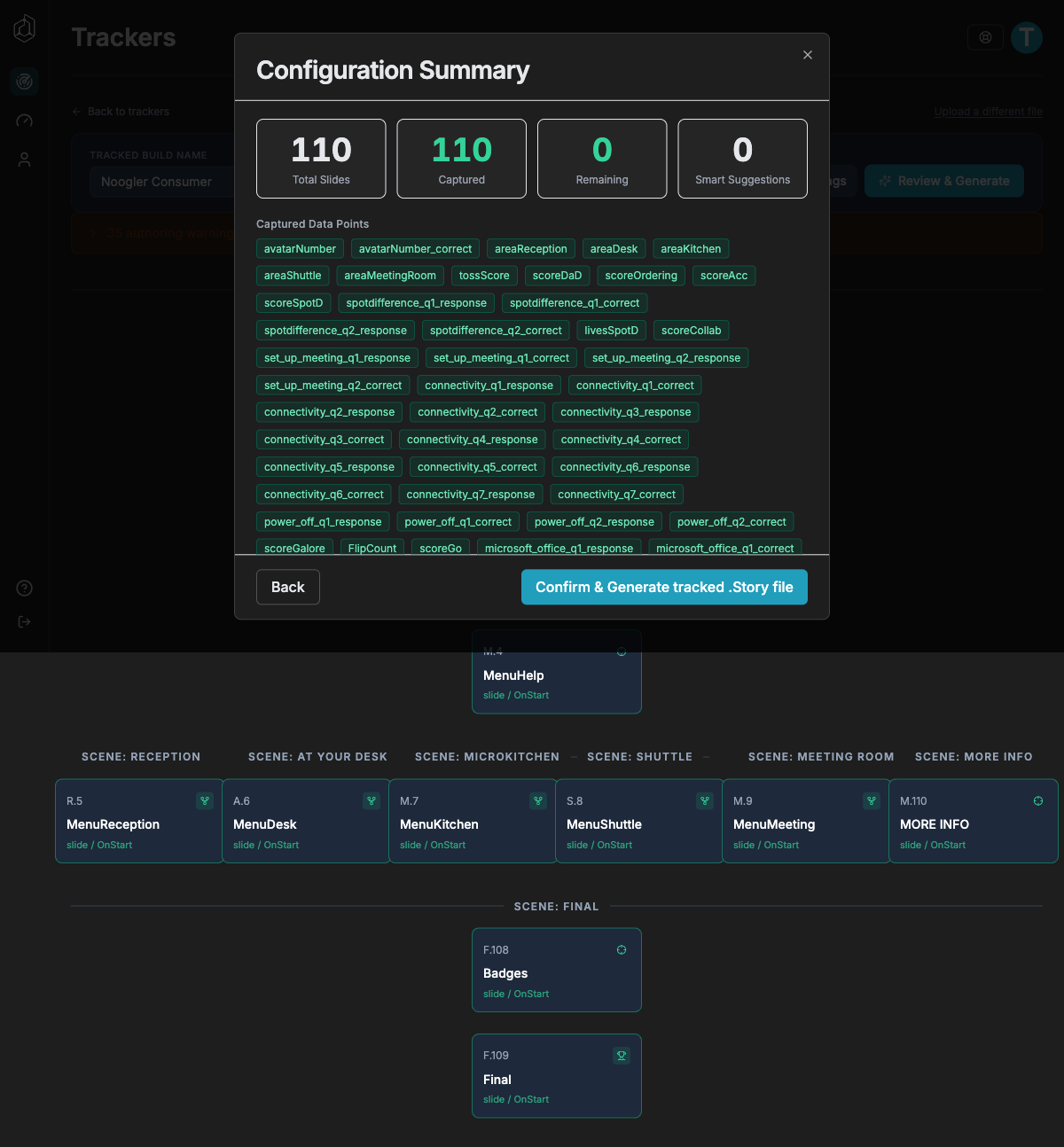
Press Generate. It takes a few seconds. Then a dialog reads:
All set File downloading — Your modified .story file with injected triggers is downloading now. Connection live — Your data pipeline is live and ready to receive tracking events. Next: publish your course — the three steps below, with a How to publish link to this page.
You are not finished. "Connection live" means the pipeline is ready to receive data, not that data is coming. Nothing has been published yet.
Publish — the Step the App Doesn't Do
The file that just downloaded is your course with tracking built in.
- Open the downloaded
.storyin Storyline. It replaces your original — work from this file from now on. - Publish it exactly as you normally would, for whatever LMS or host you use.
- Upload the published output to your LMS or web host and make it available to learners.
Until real learners open the published course, no data will arrive.
If you keep working from your original file instead of the downloaded one, you will publish a course with no tracking in it and nothing will ever arrive.
Check Data Is Arriving
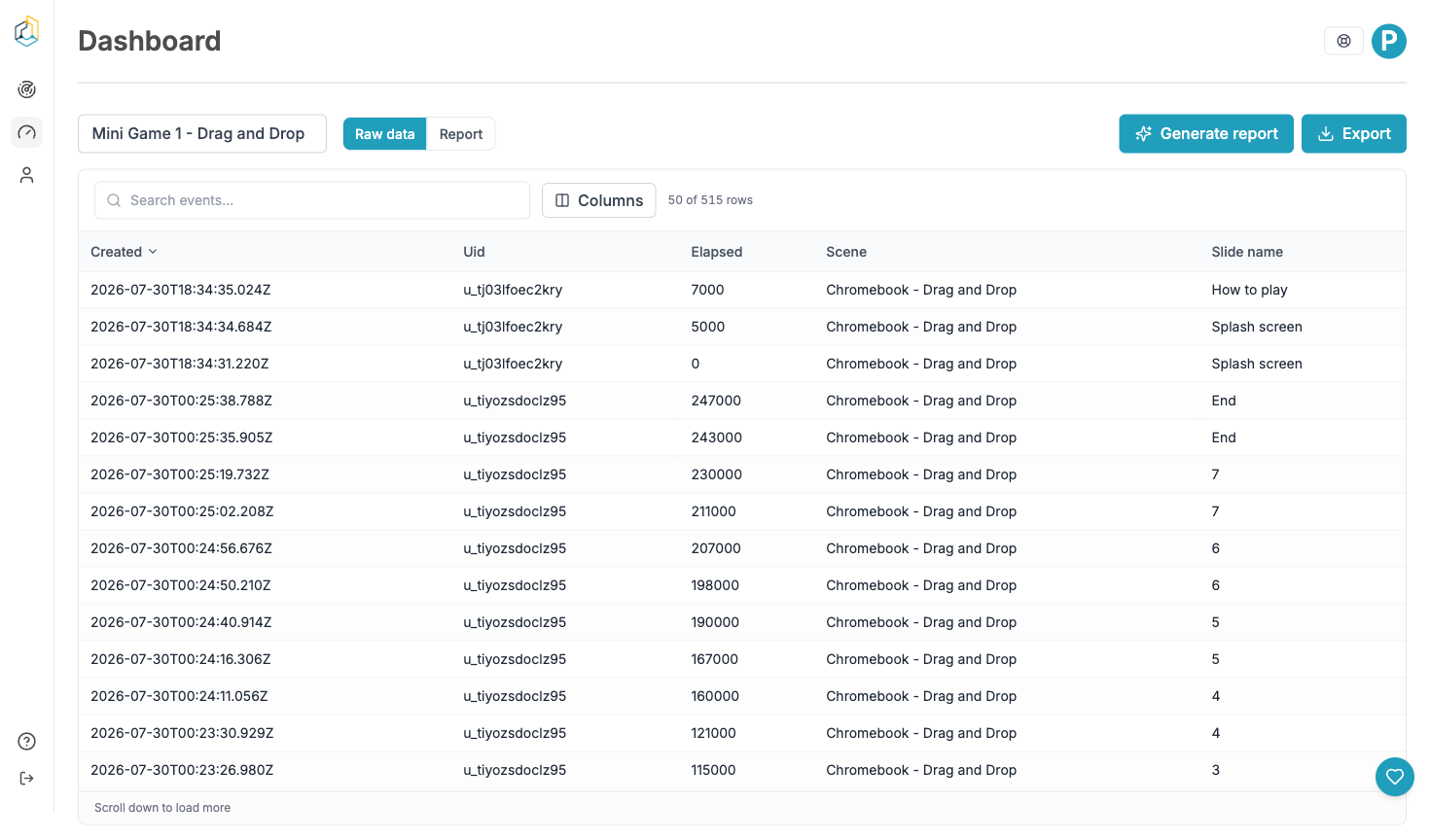
Dashboard → Raw data, with your tracker selected.
Each row is one recorded event. The default columns are Created, Uid, Elapsed, Scene and Slide name. Columns lets you add more.
Some are raw by design: Created is a full ISO timestamp, Elapsed is milliseconds, and Uid is an anonymous per-learner id — not a name, and not traceable back to a person unless you have deliberately sent something that identifies them.
If nothing is arriving, work through this in order:
- Has anyone actually opened the published course? Your own preview doesn't count if you previewed from a test site.
- Did you publish the downloaded file, or your original?
- Are you previewing from
articulateusercontent.comorcloud.scorm.com? Those are excluded from analytics by default — see Test Sites. - Does Tracked Sites allow the domain the course is hosted on?
Tracker Statuses
| Status | Means |
|---|---|
| Configuring | Uploaded, not yet generated |
| Generated | Generated and ready to receive — nothing published yet |
| Live | At least one real event has arrived |
| Out of Sync | The configuration has changed since the file you published |
Out of Sync means the published course is now behind. Generate again, and re-import and republish the new file.
Changing a Course After It's Live
Editing the course in Storyline does not change what is tracked. Upload the
edited .story again, review the warnings and tracking points, generate, and
re-import and republish as before.
Data already collected is unaffected. Reports you have already generated are snapshots and never change.