
A report turns a tracker's data into a written summary you can hand to a client. This covers generating one, what's in it, and getting data out.
In this article:
- Before You Can Generate
- Generating a Report
- What's in a Report
- Reports Are Snapshots
- Exporting Data
- Sending a Report to a Client
- If Generation Fails
Before You Can Generate
A tracker needs at least 50 recorded events. Below that, Generate report is disabled and the Report tab says how many you have.
The threshold exists because a report written from a handful of rows says nothing trustworthy. If you are sitting below it, the course simply has not been run by enough learners yet.
Generating a Report
Dashboard → Report → Generate report. Two dialogs stand between you and the report, and both matter.
Course context
Tell us about this course so the report reads for the right audience
A free-text field, up to 1,000 characters. This is the single biggest influence you have on the finished report. It sets what the course is, who took it, and what the reader cares about — the report's title, framing and recommendations all follow from it.
Write two or three real sentences. "Onboarding module for new retail staff, taken in their first week; the client wants to know where people drop out" gives a far better report than "training course".
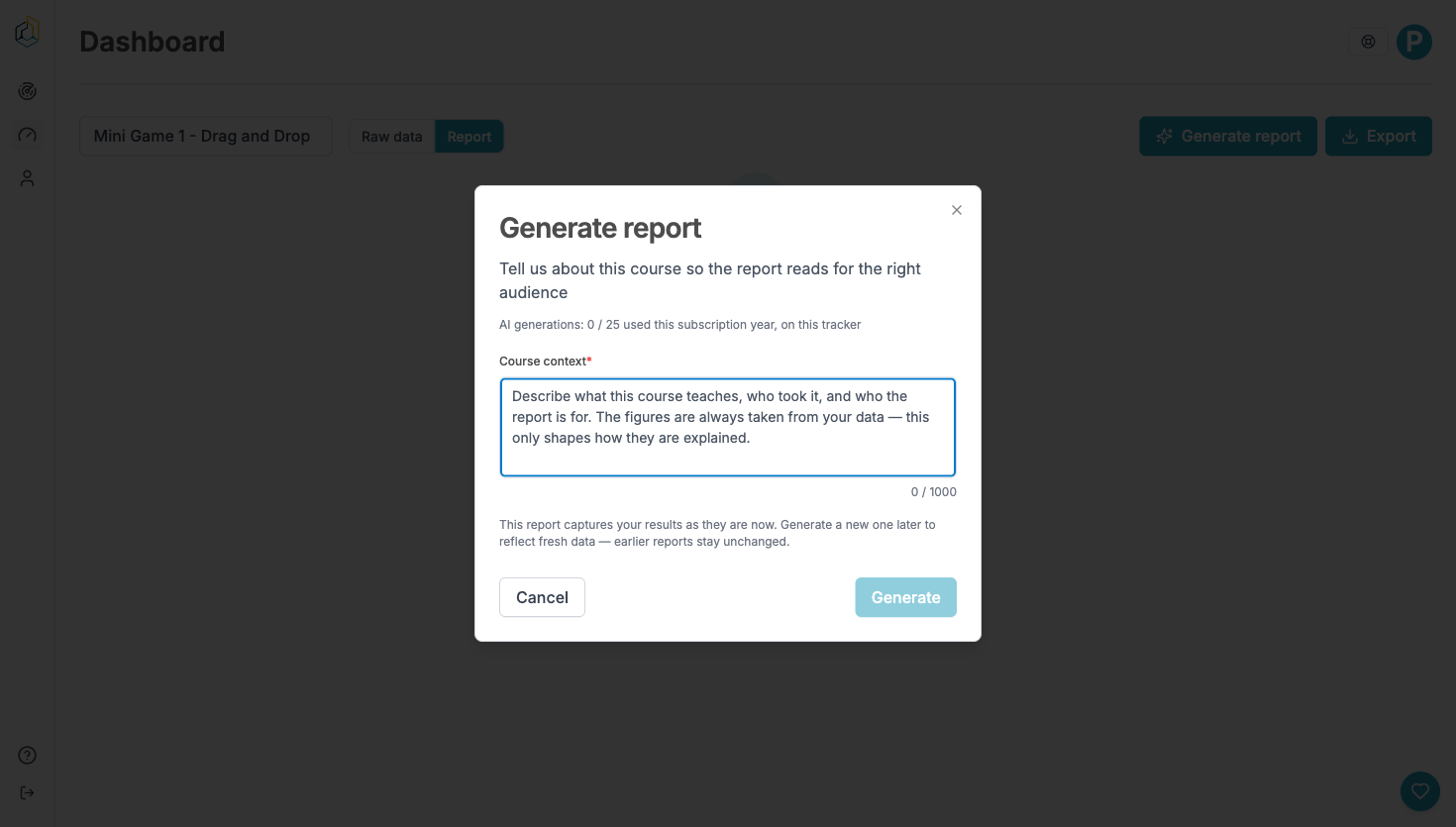
This dialog also shows your remaining allowance for the tracker.
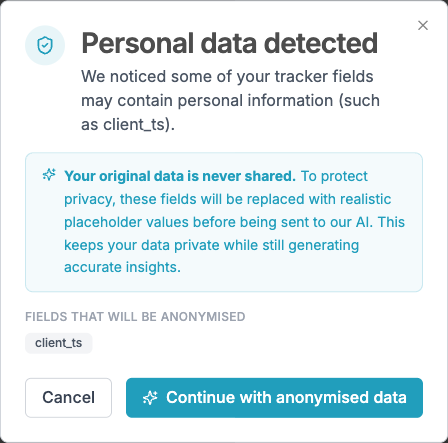
Personal data detected
If any field might contain personal information, a second dialog lists what will be replaced with placeholder values before anything is sent for analysis.
Your original data is never shared.
Your stored data is not altered — the substitution happens only on the copy used to write the report.
You may well see client_ts, a timestamp, listed here. It is not personal
information; the detector is being cautious. Continuing is safe.
Then wait
Generation takes roughly 15 seconds to a minute, depending on how much data there is. The button reads Generating... while it works — that is the only progress indicator.
What's in a Report
Every report opens with a title and date range, then a short summary paragraph.
After that, the sections depend on what the course actually recorded.
Progression and drop-off
Present on every report. Narrative paragraphs describing how far learners got and where they stopped, followed by a table:
| Column | Meaning |
|---|---|
| STEP | The point in the course |
| LEARNERS | How many reached it |
| DROP-OFF | How many stopped here |
| RETAINED | How many continued |
The single largest drop is annotated biggest drop. Where two slides share a
name, the step is qualified — Keyboard shortcuts (slide16) — which is the
duplicate-name warning
showing up in a client-facing document.
Per-question sections
One for each question the course recorded, with a narrative paragraph, a response count, and a table of ANSWER OPTION | CHOSEN | SHARE.
An ungraded question closes with "This question was not graded."
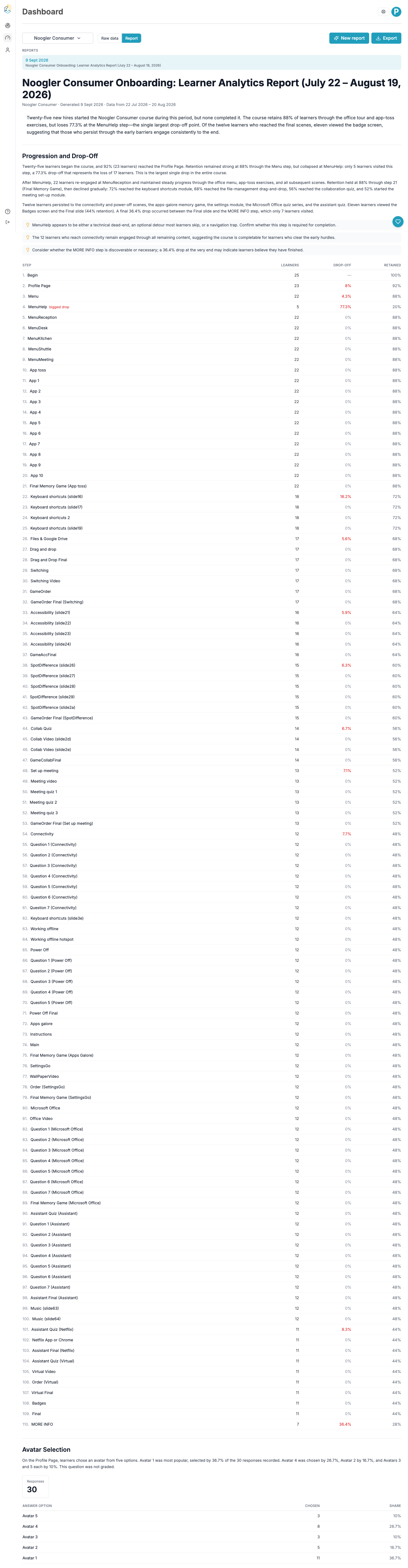
A report on a course with questions. Progression table first, then a section per question.
Recommendations
Short callouts in the narrative — things worth looking at, phrased as suggestions rather than instructions.
Reports Are Snapshots
This report captures your results as they are now. Generate a new one later to reflect fresh data — earlier reports stay unchanged.
A report is fixed at the moment you generate it. It does not update as more data arrives. Generating a new one leaves the old ones intact, listed by date, so you can compare a course before and after a change.
Generations are limited per tracker:
| Plan | Allowance |
|---|---|
| Free | 1, for the lifetime of the tracker — never resets |
| Starter | 5 per subscription year |
| Pro | 25 per subscription year |
| Business | 50 per subscription year |
| Enterprise | Unlimited |
Free is the exception: its single generation never comes back. On a paid plan the allowance resets when your subscription year rolls over.
Because reports are snapshots and allowances are finite, generate when you have something worth reporting on, not on the first day data arrives.
Exporting Data
Export gives you the underlying rows. It needs no report and no 50-event minimum.
| Format | Best for |
|---|---|
| CSV | Analysis tools and large datasets |
| Excel (.xlsx) | Spreadsheets, with formatting |
| PDF Report | Your latest generated report, branded for your client |
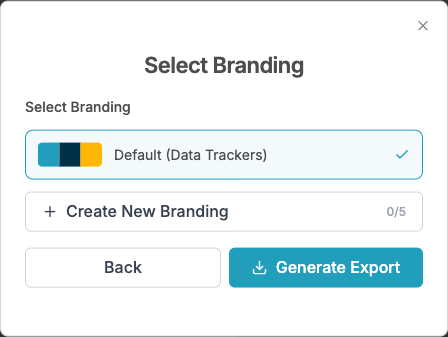
PDF exports your most recent report, not your rows. It needs a generated report to exist. Choosing it adds a branding step — the default Data Trackers branding, or one of your own.
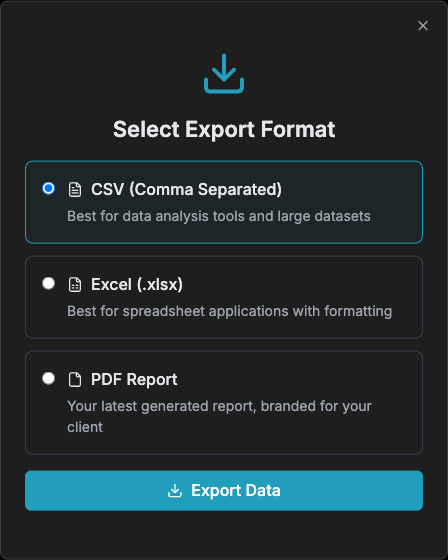
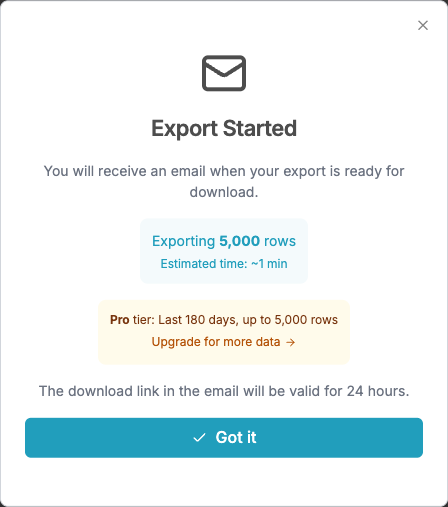
Exports arrive by email, not as a direct download, and the link is valid for 24 hours.
Two limits to know about
An export covers a window of time as well as a number of rows, and both come from your plan:
| Plan | Rows per export | How far back |
|---|---|---|
| Free | 1,000 | 30 days |
| Starter | 10,000 | 90 days |
| Pro | 50,000 | 180 days |
| Business | 250,000 | 365 days |
The row figure matches your plan's storage allowance, so a tracker that is inside its allowance exports completely. The date window is the limit you are more likely to meet: on Pro, an export reaches back 180 days however many rows that is.
If an export would exceed either limit it is cut rather than refused, and the dialog says so — "Exporting the most recent 5,000 of 5,210 rows". The most recent data is kept, so you lose the oldest rows, not the newest.
You can run one export per tracker per format per 24 hours. Exceeding it fails the export rather than queueing it, so choose your format before exporting rather than trying all three.
Sending a Report to a Client
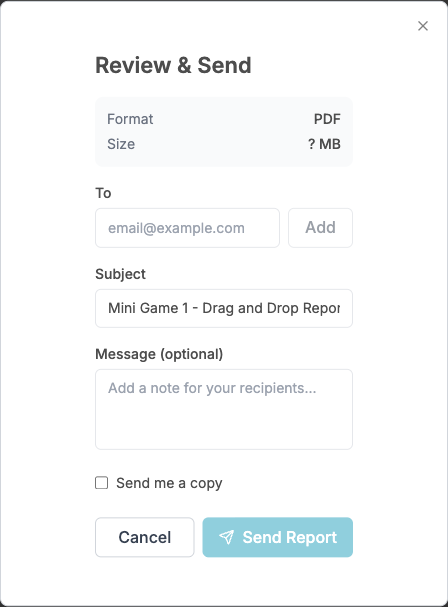
After a PDF export, Review & Send emails it directly.
Add recipients one at a time. The subject is prefilled from the tracker name and month, and you can add a message. Send me a copy is on by default.
There is a per-plan cap on recipients, enforced when you send.
If Generation Fails
"Report generation failed. Please try again in a moment." — a temporary problem. Wait and retry; it does not consume your allowance.
A message saying the failure is permanent — retrying will not help, and retrying will not cost you an allowance either. This is nearly always something on our side rather than a problem with your course or your data.
Your data is unaffected — it is all still in Raw data, and you can export it while you wait. If you need the numbers today, export to CSV or Excel and the figures a report would have summarised are all there.
Generation seems stuck — it gives up rather than hanging indefinitely. If the button has read Generating... for more than a couple of minutes, close the dialog and check the Report tab; the report may have completed anyway.